
Affiliate Disclosure: Some links on this page are affiliate links. As an Amazon Associate, we earn from qualifying purchases — at no extra cost to you. We do not buy, install, or physically handle the cameras we cover; our rankings come from aggregated owner reviews, ratings and expert consensus. Commissions never change our verdicts. We're reader-supported: commissions fund hosting, research and updates, so if a guide helped, buying through our links keeps it going. How we rank · full disclosure.
Short version: when a security camera is not working, it is almost always one of four things: it lost power, it lost a good WiFi signal, it is on the wrong band, or nothing is set up to save what it sees. Work through those in that order. Power cycle the camera first, restart the router if several devices are affected, and only factory reset as a last step.
How we work: we do not buy, install or test these cameras, and we did not reproduce these faults. This hub organizes the steps published in each manufacturer’s own support documentation, plus the limits stated in the specs. It does not diagnose your particular network. Method on how we rank; funding on our affiliate disclosure. If you want the general offline checklist first, start with why a security camera keeps going offline.
In Plain English
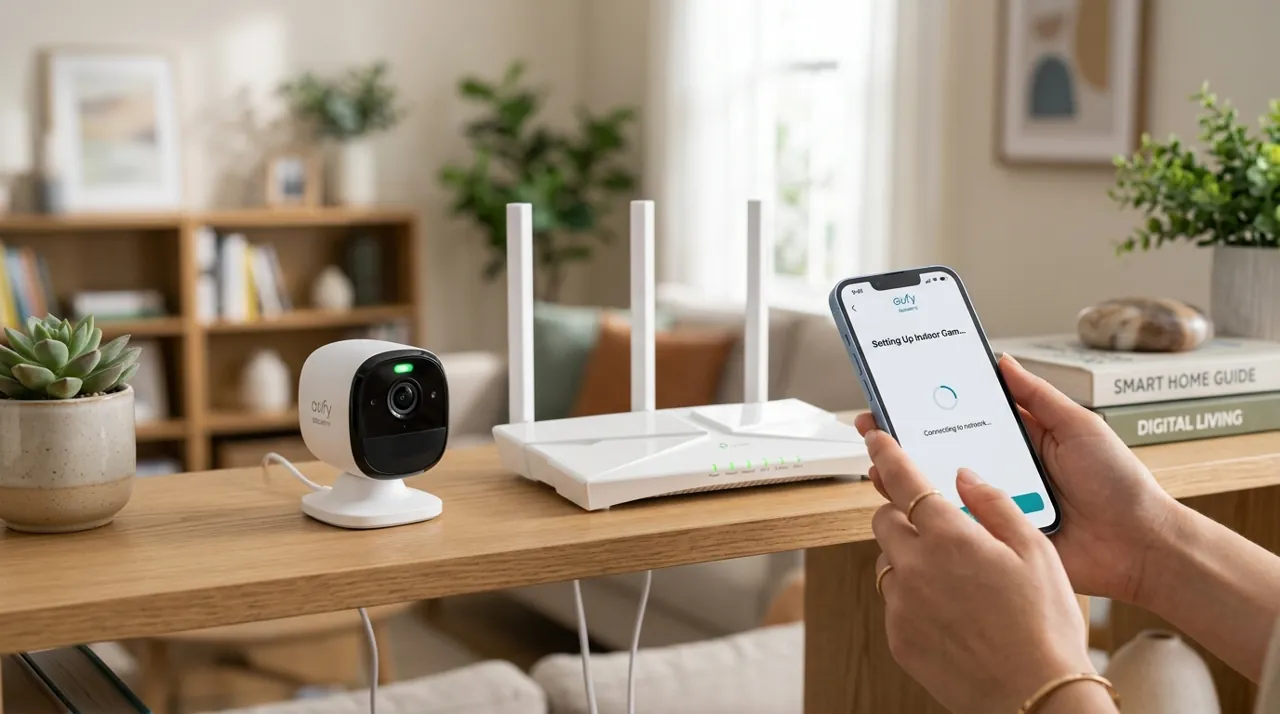
A camera that is not working is a bit like a phone that says No Service. The camera itself is usually fine. What has broken is the link between it and the things it depends on: power, your WiFi, and somewhere to store video.
That is good news, because those links are easy to check. A camera needs power (a battery that is charged, or a cable that is plugged in), a WiFi signal strong enough to reach it, the right kind of WiFi network (most home cameras only use the older 2.4 GHz band, which reaches farther but is slower), and a place to put recordings (a paid plan, a memory card, or a recorder box).
So the fix is to test each link in turn, starting with the cheapest: unplug it and plug it back in. Only when that fails do you move on to the router, then the signal, then the settings, and finally a factory reset, which wipes the camera and makes you start over.
The one thing to remember: if more than one device in your home is having trouble, blame the router, not the camera.
Start Here: Is It One Camera or All of Them?
Before touching a setting, spend two minutes working out the scope of the problem, because it decides where you look. If every camera is offline, and other devices like a phone or a streaming box also struggle, the fault is upstream in the router, the modem or the internet service. If just one camera is offline while the rest are fine, the fault is local to that camera: its power, its distance from the router, or its own settings.
Wyze’s support guidance follows the same logic: check other connected devices to isolate the issue, since several offline devices, including non-Wyze ones, points to a network problem rather than a camera problem. Reolink suggests a variation on the same idea, which is to test the camera on a different network, for example by switching WiFi connections, to rule out router misconfiguration.
Then check what the camera is telling you. Most models have a status light, and it is worth learning what yours means, because it distinguishes no power from no network. On a Reolink camera, for instance, the company suggests confirming the camera is powered by checking whether the infrared lights or spotlights come on in low light. If nothing lights up, you are looking at a power problem, and no amount of router restarting will fix it.
Fix 1: Power Cycle the Camera
This is the simplest fix and it solves a surprising share of cases, because a camera can hang in a half-connected state that only a full restart clears. The method depends on how it is powered.
For a battery camera, Blink’s support page says to remove the batteries for five seconds, reinsert them and wait about 30 seconds. For a USB-powered Blink camera it says to unplug the cable, wait five seconds and reconnect it. Reolink’s offline guide likewise puts restarting both the camera and the router ahead of a factory reset.
If a battery camera will not come back after a restart, the battery is the next suspect, not the network. Blink suggests trying fresh 1.5V lithium AA batteries in its battery models, and Ring’s guidance for its rechargeable packs is to test with a second battery if troubleshooting fails, since battery performance degrades over years of use.
Fix 2: Restart the Router and Modem
If several devices dropped at once, restart the network gear. Ring’s offline-device article says to turn off the router and modem by unplugging them for 30 seconds. Blink gives a similar sequence: unplug the router, wait 30 seconds, plug it back in, and power cycle the Sync Module by unplugging it for 10 seconds.
Give the router a few minutes to come fully back before you judge the result. Cameras reconnect on their own schedule, and some need a nudge after the network returns. Reolink has a dedicated article for cameras that stay offline after the router resumes to work, which is a reminder that a camera which does not come back by itself usually just needs its own power cycle once the router is up.
Two other router habits cause repeated dropouts. The first is running more than one router, which Ring says can cause problems and recommends replacing with a single router or a bridge-mode setup. The second is range extenders and pods sitting between a Blink Sync Module and its router: Blink advises disconnecting extenders and making sure only your main router is powered on while you troubleshoot.
Fix 3: Check the Signal at the Camera’s Exact Spot
A camera that drops offline every evening or only in some weather is very often a signal problem. Walls, brick, metal siding and distance all weaken WiFi, and the signal at your desk says nothing about the signal on the far side of an exterior wall.
Use the tools the camera brand gives you. Ring’s app has a Device Health tile that shows a signal-strength reading, and Ring says a weak connection can make a device repeatedly disconnect and reconnect. Blink advises aiming for three bars of signal at both the Sync Module and the cameras, and says connections below two bars can cause intermittent trouble with Live View and video uploads.
If the number is poor, the options in order of effort are: move the router closer, move the camera closer, add a mesh node or extender near the camera, or switch to a wired connection. Blink’s Sync Module, for example, is best kept within about 3 to 10 feet of the router and can talk to cameras up to about 100 feet away under standard conditions. See how far a camera can be from the router for the range picture.
Fix 4: Make Sure the Camera Is on the Right WiFi Band
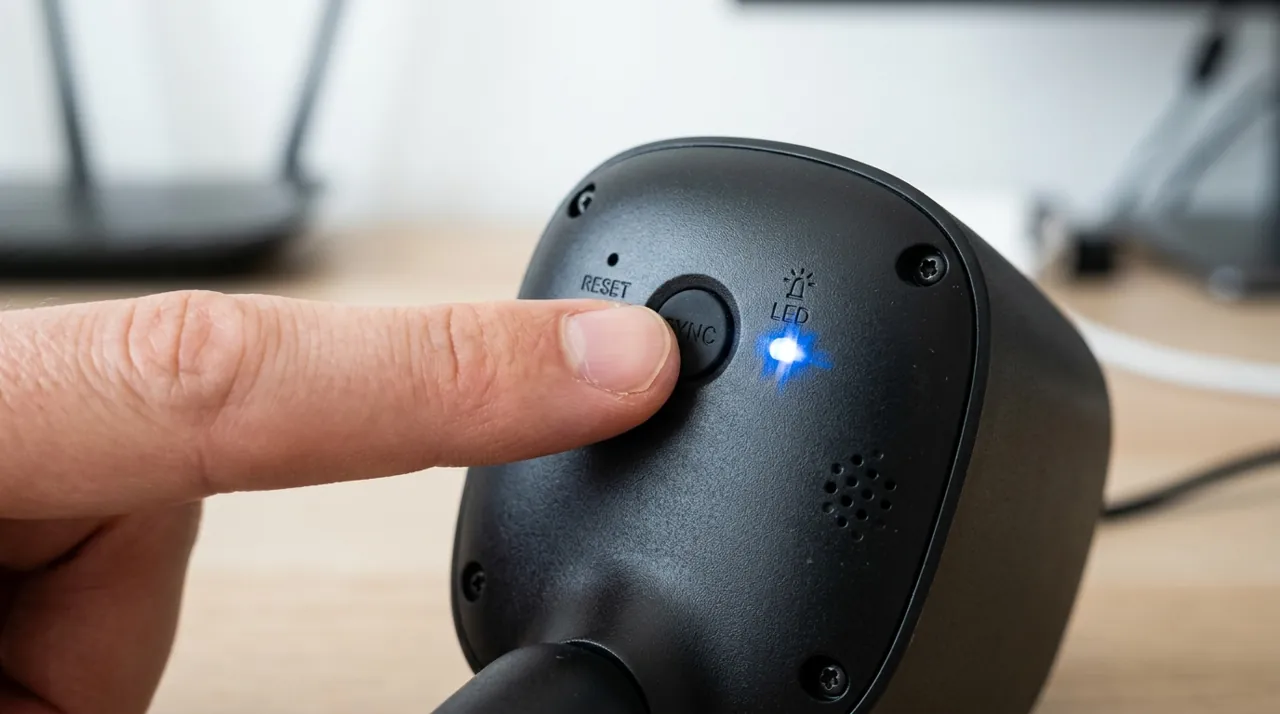
Many home cameras only support the 2.4 GHz band, and they will not connect to a 5 GHz network at all. Blink states plainly that its products can only connect to 2.4 GHz networks. Wyze says its Cam v4 supports 2.4 GHz WiFi 6 and does not support 5 GHz, and Ring’s guidance says some of its devices only support 2.4 GHz networks and suggests trying a 2.4 GHz network instead of 5 GHz.
This matters most after you change the router or the network name. A new router that merges both bands under one name can confuse setup, and the camera may join the wrong one or fail to join at all. Splitting the two bands into separate names for setup, then joining the camera to the 2.4 GHz one, is the usual fix; see whether cameras need 5GHz or 2.4GHz WiFi and how to connect a camera to WiFi.
A changed WiFi password does the same thing. Blink lists updated WiFi settings, such as a new password, among the common reasons a Sync Module goes offline, and the fix is to update the settings in the app.
Power Problems: Batteries, Cold and Charging
Battery cameras go offline for a boring reason more often than a technical one: the battery is empty. Ring says its app sends a low-battery warning when a battery-powered camera or doorbell falls below 30% charge, so a missed notification can mean a camera that quietly ran down. Ring’s device charges over USB, and the company says a battery can take up to 10 hours to charge fully.
Cold makes it worse. Ring says that near freezing the battery will not last as long, and that its devices are programmed to halt charging below 32°F (0°C), so a solar-charged camera may need to come indoors for a USB charge in winter. Google says the same about its Nest Doorbell (battery): it will not charge below 32°F and charges slowly near freezing. The effect is temporary and the battery returns to normal once it is warm and charged.
If you are chasing a battery that seems to drain too fast, Ring says more Live Views, linked events and motion events mean more frequent recharging, and that a weak WiFi signal makes a device repeatedly disconnect and reconnect, which drains it faster. Our Ring Stick Up Cam battery guide covers this in detail, and how long camera batteries last sets expectations by camera type.
Camera Online but Not Recording
A camera can be perfectly connected and still record nothing, because recording is a separate job from connecting. There are four usual reasons.
No plan. Ring says that without a Ring Protect plan you can view live video and respond to alerts, but a subscription is required to review recorded video, and that a plan keeps motion event videos for up to 180 days. The same pattern holds for most cloud-based brands: live view is free, history is not. Plan terms change, so check the brand’s current page. Ring camera not recording and Blink camera not recording cover the two most-asked cases.
Storage problems. A camera that records to a microSD card will stop or overwrite when the card fails or fills up, and a card that is not recognized records nothing. See SD card storage troubleshooting.
Motion settings. If detection is off, the sensitivity is too low, the motion zone excludes where the event happened, or a schedule blocks that hour, the camera will not record what you expected. Ring’s battery guidance points to sensitivity, motion zones and frequency as the settings to adjust.
Low battery or weak signal at the time of the event. A camera that was offline when something happened cannot upload it.
If Your Camera Is Wired: Cables, PoE and Router Settings
Wired cameras drop off for different reasons than battery ones, and the fixes are more mechanical. Reolink’s guide to wired cameras that keep going offline lists defective or disconnected Ethernet cables, a faulty power supply or incompatible adapter, and a camera not getting enough power among the physical causes. On the network side it lists a router firewall, MAC filtering, AP isolation and VPN interference.
The fixes Reolink gives are straightforward: replace the Ethernet cable and try a different network port, disable those router settings while testing, and reboot both the camera and the router. Reolink also notes that a PoE camera powered from a PoE switch or injector should use an active 802.3af or 802.3at unit and not a passive injector, and that Cat5 or better cable can run up to 100 m (328 ft).
If your wireless cameras keep dropping and you have never had a stable week, the honest answer may be that WiFi is the wrong tool for that spot. A wired PoE camera has no battery to charge and no wireless link to lose, which is why our wired PoE camera hub exists.
Brand Notes: Ring, Blink, Wyze and Reolink
Ring. Use the Device Health tile in the app to read signal strength. Ring’s advice for repeated dropouts includes a single router, bridge mode where several routers are unavoidable, and a mesh system or Chime Pro extender. See why is my Ring camera offline.
Blink. Get the Sync Module online first, because a camera cannot come online without it on models that use one, and Blink says some cameras do not need one. Then power cycle the camera. Blink needs a minimum of 2 Mbps upload speed, says it does not support satellite internet because of latency, and works with mesh networks while only communicating on 2.4 GHz.
Wyze. Most Wyze cameras only use 2.4 GHz. Check the status light, power cycle, and use other devices to isolate a router problem. See why is my Wyze camera offline.
Reolink. Follow the order Reolink gives: check power, rule out network and app issues, restart camera and router, swap cables on wired models, then hard reset.
When a Factory Reset Is the Right Step
A reset erases the camera’s stored settings, and you will have to set it up again as if new. That makes it a last step, not a first one, and Reolink’s own guide reflects that ordering. It is the right move when the camera will not respond to a restart, will not accept new WiFi details, or has been moved to a new account or router. Before you reset, note anything you will lose, such as motion zones and schedules. See how to reset a security camera for the general steps, and the brand reset guides linked from there.
Going Deeper: What the Manufacturers’ Own Numbers Tell You
Most troubleshooting advice online is vague about numbers, and the vendor documentation is more specific than people expect. A few figures are worth knowing because they turn a guess into a test.
On WiFi bands, Intel’s explainer says 2.4 GHz gives longer range at lower data rates, with a typical over-the-air maximum of up to 100 Mbps, while 5 GHz can deliver up to 1 Gbps. It also says 2.4 GHz is more cluttered because so many legacy devices use it, particularly in apartment buildings. That is the tension behind camera dropouts: the band your camera is forced to use is the more crowded one, and crowding shows up as intermittent failures rather than a clean outage. Intel adds that most users will have similar connectivity through the home on 5 GHz or 6 GHz, which is why some households simply move their other devices off 2.4 GHz to leave it clear for cameras.
On signal, Blink’s three-bars target and Ring’s Device Health reading are the closest thing to a pass mark. Treat them as thresholds to measure at the camera’s exact mounting spot, not near the router. On upload speed, Blink’s stated minimum of 2 Mbps is a floor; multiple cameras uploading at once need more headroom, and a slow upload link causes delayed or missing clips even when the camera shows as online.
On power, the figures that catch people out are temperature ones. Ring’s devices operate normally between -4°F and 122°F (-20°C to 50°C), with charging halting below 32°F. Google’s Nest Doorbell (battery) lists an operating range of -4°F to 104°F, and its battery life guidance is from about one month on a busy door with 25 to 30 events a day to about six months on a quiet one. Those spreads are why a camera that lasted all summer can seem to fail overnight in December.
Finally, on Ethernet, Reolink says Cat5e or better runs up to 100 m (328 ft) for its PoE cameras, and general PoE references give 100 meters as the limit for all PoE standards, set by Ethernet cabling rather than power. A wired camera that drops at a longer run is worth suspecting for cable length before anything else.
When the Camera Is the Problem
Sometimes the right fix is a different camera. If you have followed the steps and one position never holds a signal, a battery camera on a busy door drains in weeks, or you are paying a plan just to see recordings you would prefer to keep, that is information about fit rather than a fault. A wired PoE camera or a system with local recording removes the battery and the plan from the equation; see our wired PoE cameras hub and NVR camera systems for the options.
Sources & References
- Fixing offline devices — Ring
- Camera is offline message — Blink
- Wi-Fi Information and Troubleshooting Guide — Blink
- Troubleshooting Guide: Resolving Reolink Camera Offline Issues — Reolink
- Reolink Wired Connection Keeps Going Offline — Reolink
- Comparing Ring Protect plans — Ring
- Ring devices and cold weather — Ring
- 2.4 GHz vs. 5 GHz vs. 6 GHz: What’s the Difference? — Intel