
Affiliate Disclosure: Some links on this page are affiliate links. As an Amazon Associate, we earn from qualifying purchases — at no extra cost to you. We do not buy, install, or physically handle the cameras we cover; our rankings come from aggregated owner reviews, ratings and expert consensus. Commissions never change our verdicts. We're reader-supported: commissions fund hosting, research and updates, so if a guide helped, buying through our links keeps it going. How we rank · full disclosure.
Short version: most camera problems are fixed by a soft reset — unplug or power-cycle it — rather than a full factory reset. Try the smaller fix first. A factory reset should be your second step, not your first. It wipes all settings, WiFi credentials and the camera's pairing to your account. You'll need to set it up again from scratch afterward.
In Plain English
When a camera stops responding, start with a soft reset (turning it off and on again). Unplug it or take out the battery, wait 30 seconds, and reconnect. This fixes most problems and keeps all your settings.
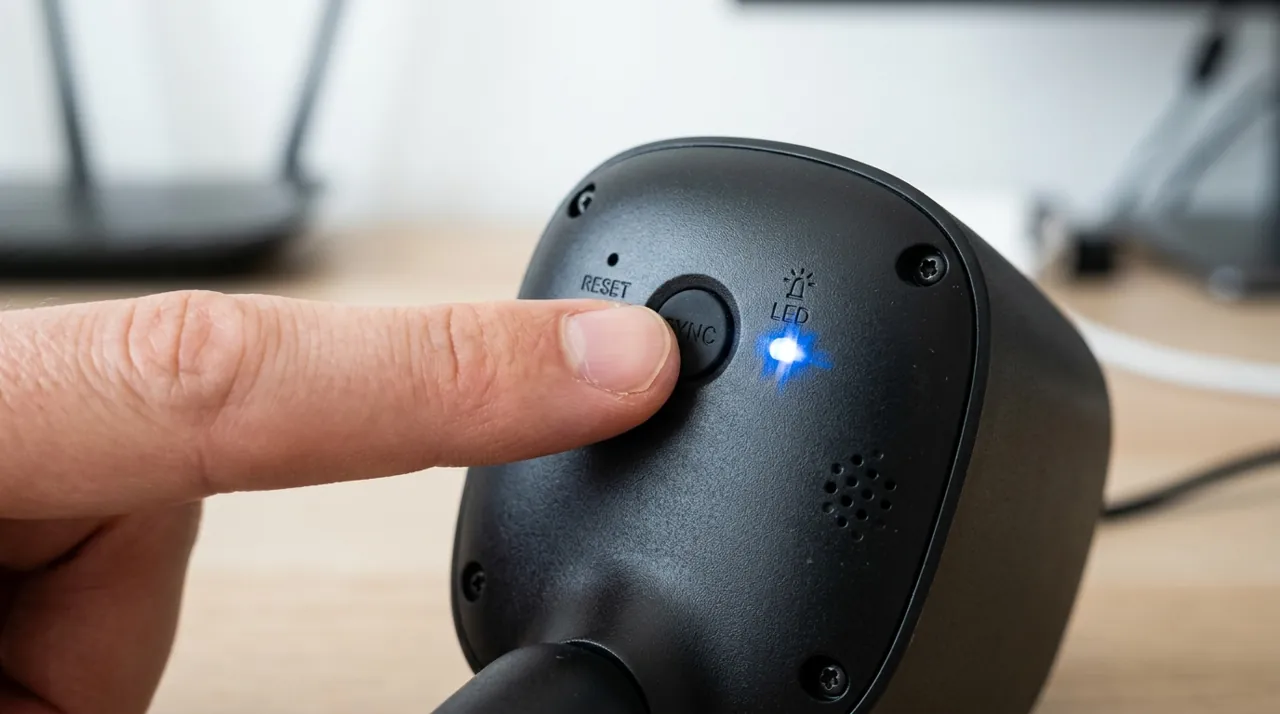
A factory reset is different. It wipes the camera back to how it came out of the box, like clearing a phone before you sell it. You lose the Wi-Fi password, the link to your account, your motion zones and alert settings, and you have to set it up again from scratch. So only use it if a soft reset didn’t work, if the camera won’t join a new router, or if you are selling or returning it. To do it, press the tiny recessed button with a paperclip for as long as the manual says, and watch for the light to change.
Cameras This Guide Applies To

The most-reviewed video doorbell tracked on this site with one of the deepest, highest-rated review bases we track. Its head-to-toe view shows the package on the mat. Reset instructions and troubleshooting are well-documented given the size of its owner base.
Why You Should Get This
If you own this doorbell and need reset guidance, this is one of the most-documented devices in the category.
Benefits
- Deepest review base of any doorbell tracked on this site.
- Well-documented reset process.
- No wiring required.
Pros and Cons
- Largest, most trustworthy review base.
- Extensive community troubleshooting resources.
- Simple reset button access.
- Recorded clip history needs a Ring subscription.
- 1080p rather than 2K.
- Factory reset requires full re-setup.
Features
- Head-to-toe 1:1 view.
- Removable battery or hardwiring.
- Two-way talk.

A common outdoor camera with its own documented reset process, with a solid owner rating. It runs on two AA lithium cells rated for up to two years. Weather-resistant, wire-free mounting works virtually anywhere.
Why You Should Get This
If you own a Blink camera and need reset guidance, this is the flagship outdoor model most owners run.
| Resolution | 1080p HD (1920x1080) |
| Field of view | 143° |
| Power | 2x AA lithium batteries, up to 2-year life |
| Night vision | Infrared |
| Audio | Two-way audio |
| Install | Wireless, wall-mount bracket |
Benefits
- Two-year rated battery life.
- Well-documented Sync Module reset process.
- Weather-resistant mounting.
Pros and Cons
- Longest rated battery life in its category.
- Free local storage via Sync Module.
- Amazon ecosystem integration.
- Lower star rating than premium alternatives.
- 1080p resolution.
- Reset process involves the Sync Module too.
Features
- Two-year rated battery life.
- 1080p HD video.
- Weather-resistant mounting.

A common indoor/outdoor camera with a simple reset button, at an entry-level price and a solid owner rating. 2.5K resolution with color night vision. Local microSD recording works with no plan required at all.
Why You Should Get This
If you own a Wyze camera and need reset guidance, this is the current flagship model most owners run.
Benefits
- Simple physical reset button.
- Genuine no-subscription local recording.
- Indoor/outdoor rated.
Pros and Cons
- Straightforward reset process.
- No subscription required for core recording.
- Built-in spotlight and siren.
- MicroSD card sold separately.
- Cam Plus needed for smart detection after reset.
- Smaller ecosystem than Ring.
Features
- 2.5K, color night vision.
- Local microSD recording.
- Indoor/outdoor rated.
Soft Reset vs Factory Reset: Not the Same Thing
A soft reset, also called a power cycle, simply restarts the camera. Unplug it or remove the battery for 30 seconds, then reconnect it. This clears temporary glitches and refreshes the WiFi connection. It fixes the majority of "camera is unresponsive" or "camera won't load live view" problems without losing any settings.
A factory reset wipes everything: WiFi credentials, account pairing, custom activity zones, notification settings, all of it. The camera returns to its out-of-box state. It needs to be set up again from the beginning, exactly as if newly purchased. Only do a factory reset if a soft reset hasn't fixed the problem, if the camera won't connect to a new WiFi network after a router change, or if you're preparing to sell, give away, or return the camera.
How to Soft Reset
Unplug the camera from power, or remove the battery on a battery-powered model. Wait a full 30 seconds, then reconnect. For PoE cameras, this means unplugging the Ethernet cable at the camera or switch. Give the camera one to two minutes to fully reboot and reconnect to WiFi before checking the app again. This one small step fixes more "dead" cameras than any other single fix in this guide, and it costs you nothing but a minute or two of patience.
How to Factory Reset a Security Camera
Nearly every consumer security camera has a small, recessed reset button. It usually sits on the underside or back of the unit. You'll need a paperclip or the SIM-eject tool included in the box to press it. Hold it down for the duration specified in the manual — commonly between 5 and 20 seconds (Ring, for example, specifies 20 seconds; eufy’s eufyCam 2 series, 10). Watch for the status light to change color or flash in a specific pattern; that signals the reset has completed. Exact button location and hold time vary by brand and model. Check the manufacturer's support page for your specific camera if the light doesn't behave as expected. A mistimed press that's too short often does nothing at all.
Some newer cameras support a factory reset directly from within the app instead of the physical button — check the device settings menu first, since it’s often faster and confirms the reset completed successfully rather than guessing from a light pattern.
Setting the Camera Back Up After a Factory Reset
After a factory reset, the camera behaves exactly like a brand-new unit. Open the manufacturer's app and choose "add a device." Follow the same QR-code or setup-code pairing process used the first time. You will need to re-enter your WiFi password, rebuild any activity zones, and reconfigure notification preferences — none of that carries over from before the reset. Our how to connect a security camera to WiFi guide covers that pairing step in detail if it doesn't go smoothly.
When a Reset Is (and Isn’t) the Right Fix
Reset for a camera that won't connect after a router or WiFi password change. Reset for persistent app crashes tied to one specific camera. Reset before you sell or return the unit, or when a camera has become completely unresponsive to both the app and a soft reset. Don't reset for a camera that's simply offline right now — try why does my camera keep going offline first. And don't reset for missed notifications, which is usually a phone settings issue covered in how to view your camera on your phone.
Resetting a Hub or NVR Instead of a Single Camera
Systems built around a shared hub, base station or NVR add a second decision. Reset the individual security camera, or reset the hub itself? If one camera on a multi-camera system misbehaves while the others work fine, reset that camera alone. Resetting the hub won't fix a single-device problem. It will also unnecessarily disrupt every other connected camera. Reset the hub only when the entire system is affected — no cameras responding, or the hub's own status light behaving abnormally. A hub reset is a bigger step than resetting one security camera. On some systems it can wipe locally stored footage for every connected device. Treat it as a last resort, not a first troubleshooting step.
When It's a Firmware Problem, Not a Settings Problem
Not every "camera acting up" symptom is fixed by any kind of reset. Blurry or distorted video, sudden color casts, or an app that consistently misreports the camera's status often point to a firmware bug rather than a corrupted setting. Check the app for a pending firmware update before resetting. Installing an available update sometimes resolves the exact symptom a reset would otherwise fail to fix. It's also faster and less disruptive to try first. It doesn't require re-entering WiFi credentials or rebuilding motion zones afterward.
One Habit That Prevents Most Emergency Resets
A security camera that's about to need a factory reset almost always shows warning signs first. A signal reading has been marginal for weeks. An app occasionally lags before finally connecting. A battery has been running lower than usual. Check device health in the app every month or two, rather than only when something has already stopped working. This habit catches most problems while a soft reset or a simple signal fix still solves them. It heads off a full factory reset and a from-scratch setup.
Accessories Worth Having on Hand

Best for re-inserting fresh local storage after a factory reset wipes the card.

Best for remounting a camera after a reset and re-pairing.
Going Deeper: What Manufacturers Say Resets Actually Do
Makers draw the same line between a restart and a wipe. Ring’s reset guide gives separate steps for a power cycle: remove the battery pack for 10 seconds on battery devices, unplug plug-in devices for 10 seconds, or turn off the light switch or circuit breaker for wired ones. A factory reset means holding the setup button for 20 seconds and then releasing it, and Ring notes that afterwards you might need to set the device up again in the Ring app.
Hubs follow their own procedure. Blink’s Sync Module reset guide says to press and hold the reset button on the back of a Sync Module Core, XR or Sync Module 2 until the LED turns solid red, then release; the reset is complete when the lights change to a blinking blue and a solid green LED, and the module is then ready to be set up again. Blink recommends completing standard troubleshooting before resetting, which matches this guide’s advice to reset a hub only when the whole system is affected rather than when a single camera misbehaves.
Resetting a device does not settle who owns it. Ring’s ownership-transfer guide says that to release a Ring device you must remove it in the Ring app; cancelling your subscription or deleting the app won’t do it. It also notes that transferring a device doesn’t cancel its Ring subscription, and that the new owner has to start setup from the confirmation email or notification. So if you are selling, giving away or returning a camera, remove it from your account as well as resetting it, and deal with any subscription separately, so the next owner can add it cleanly.
If a Reset Doesn’t Fix It
If a full factory reset and fresh setup still doesn’t resolve the problem, that points to a genuine hardware fault or a firmware bug rather than a configuration issue, and it’s worth contacting the manufacturer’s support directly — most consumer cameras carry at least a one-year warranty, covered in our install guide's warranty section.