
Affiliate Disclosure: Some links on this page are affiliate links. As an Amazon Associate, we earn from qualifying purchases — at no extra cost to you. We do not buy, install, or physically handle the cameras we cover; our rankings come from aggregated owner reviews, ratings and expert consensus. Commissions never change our verdicts. We're reader-supported: commissions fund hosting, research and updates, so if a guide helped, buying through our links keeps it going. How we rank · full disclosure.
Short version: viewing a security camera on your phone means three things working together — the camera’s app installed and signed in, the camera paired to your account during setup, and an internet connection at both ends. Once that is done, live view and clip playback both happen from the same app icon. This guide covers the setup, the difference between live view and recorded playback, notification settings, and the most common reasons remote viewing breaks.

In Plain English
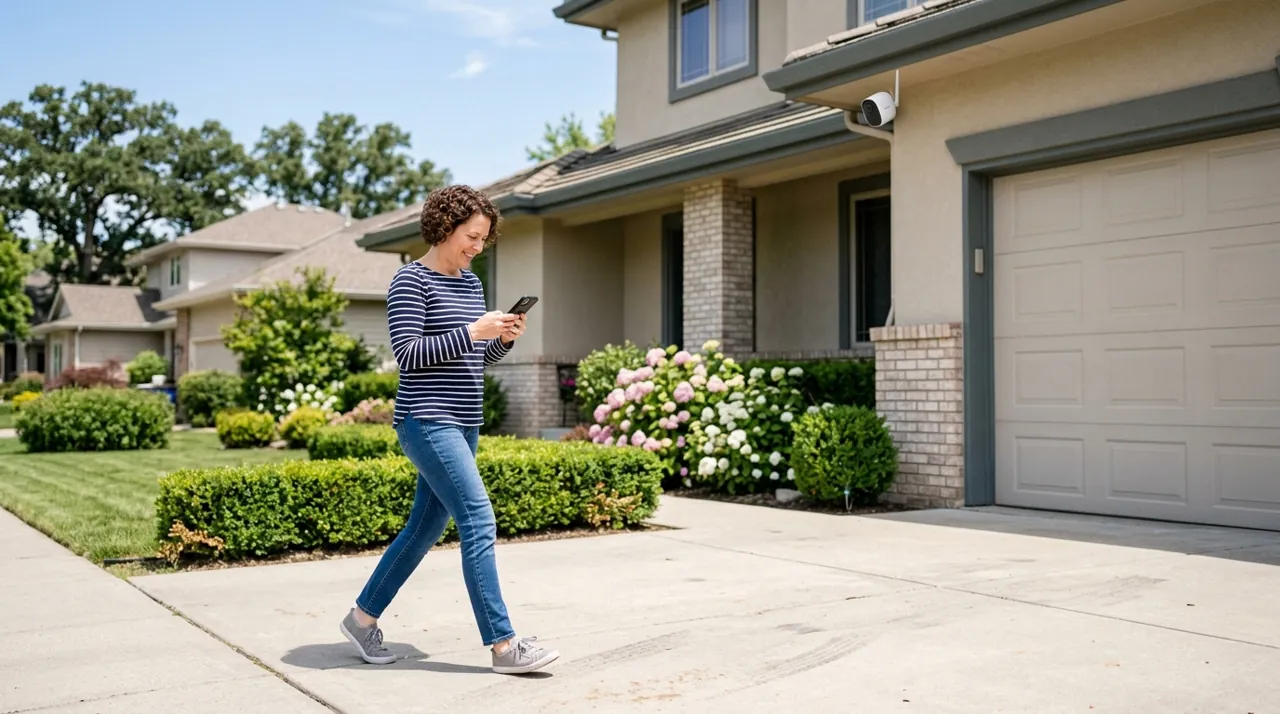
Watching your camera on your phone works through the camera maker’s app. During setup you link the camera to your account (your login with that brand). After that, any phone signed into the account can see the camera from anywhere with internet.
Think of it like a streaming service. The show isn’t on your phone. It’s on the service, and your login lets you watch it. That is also why the password matters so much. Anyone with your login can see what your camera sees.
There are two different screens. Live view shows what is happening now. Playback shows recorded video from earlier, and some brands only save that video if you pay for a subscription.
The one thing to do: download the brand’s own app, not a generic camera viewer. Then turn on two-factor authentication (a second check, like a code sent to your phone) in the account settings before you start using the camera.
Cameras This Guide Applies To

The most-reviewed video doorbell tracked on this site with one of the deepest, highest-rated review bases we track, viewed through the Ring app on any smartphone. Live view and alerts work with no subscription; recorded clip history needs a Ring Protect plan.
Why You Should Get This
If you own this doorbell and want to view it from your phone, the Ring app’s live view works free.
Benefits
- Live view works on the app with no subscription.
- Fast, reliable push notifications.
- Widely regarded as the most polished app.
Pros and Cons
- Simple app setup.
- Large community documentation.
- Two-way talk from the phone app.
- Recorded clip history needs a subscription.
- Notification delay reported in some reviews.
- Requires a stable internet connection to view remotely.
Features
- Head-to-toe 1:1 view.
- Removable battery or hardwiring.
- Two-way talk.

Wyze’s current flagship camera, at an entry-level price and a solid owner rating, viewed through the Wyze app with live streaming and local playback from an inserted microSD card, no subscription required.
Why You Should Get This
If you want to view both live and previously recorded footage from your phone with no subscription, this is the pick.
Benefits
- Live view and local playback work with no subscription.
- 2.5K resolution with color night vision.
- Local microSD recording.
Pros and Cons
- No plan required to view recorded clips.
- Simple app-based setup.
- Indoor/outdoor rated.
- MicroSD card sold separately.
- Cam Plus needed for smart detection alerts.
- Smaller ecosystem than Ring.
Features
- 2.5K, color night vision.
- Local microSD recording.
- Indoor/outdoor rated.
Setting Up Remote Viewing for the First Time
Every consumer camera brand — Ring, Arlo, Nest, Blink, Eufy, Wyze, Tapo — ties remote viewing to a manufacturer app and an account, created during the camera's initial setup. Download the brand's specific app, not a generic "IP camera viewer," and create an account. Then follow the in-app pairing flow, which typically involves scanning a QR code on the camera or entering a setup code. This pairs the camera to your account permanently. Once done, opening the app from any phone signed into that account shows the camera, on any network.
PoE and NVR systems work differently. The recorder itself is usually the thing you pair to an app, not each camera individually, and remote access sometimes needs an extra step. That step is either a cloud relay service the manufacturer runs, or in some setups, direct network configuration. Check your NVR's manual for the specific remote-access app it uses. Reolink, for example, uses its own app that connects to the NVR through its cloud relay by default, with no manual configuration required for most home setups.
Live View vs Playback: They Are Different Screens
Live view shows what the camera sees right now, streamed in real time — this is what most people open the app for during the day. Playback (sometimes called "timeline" or "history") shows recorded clips or continuous footage from earlier, and it is a separate section of the app, not the same stream rewound. If a camera requires a subscription to save video history, the playback section will be empty or heavily limited without a paid plan, even though live view works fine — this is the single most common source of "my camera isn’t recording" confusion, covered fully in is Ring worth it.
Getting Notifications to Actually Show Up
A camera that detects motion but never alerts your phone is almost always a phone-side settings problem, not a camera fault. Check three things in order: the app’s own notification toggle (motion alerts are often a separate switch from "app notifications"), your phone’s system-level notification permission for that app, and battery-optimization settings on Android specifically — many Android phones aggressively kill background apps to save battery, which silently stops push notifications from arriving. iPhone users should also confirm the app isn’t set to "Silent" under Focus modes.
When Remote Viewing Breaks
Four causes cover almost every remote-viewing failure:
- Weak WiFi at the mounting point is the most common — see our guide on connecting a camera to WiFi for signal troubleshooting.
- A router restart that reassigned network settings can drop a camera off entirely; power-cycling the camera usually reconnects it.
- An app that needs updating occasionally breaks compatibility with older camera firmware.
- A genuinely offline camera — dead battery, unplugged, or a power outage — will show as offline regardless of your phone or network; our why does my camera keep going offline guide walks through diagnosing that specifically.
One App or Several?
Mixing camera brands means juggling multiple apps, since each brand’s ecosystem is closed. Some smart-home platforms (Apple Home, Google Home, SmartThings) can consolidate live view for compatible cameras into one interface, though advanced settings usually still require the manufacturer’s own app. Recorded history varies: Apple’s HomeKit Secure Video, for example, keeps the last 10 days of activity in the Home app for supported cameras, but it needs an iCloud+ plan and a home hub such as an Apple TV or HomePod — and the 50GB plan covers just one camera, 200GB up to five. If having a single app matters to you, our best security camera apps guide compares the major ecosystem apps directly, and best smart home security cameras covers which cameras genuinely consolidate under one platform.
Two-Factor Authentication and Account Security
Viewing a camera remotely means the app account, not the camera itself, is the actual security boundary that matters. Whoever can log into that account can see everything the camera sees. Default or reused passwords, not sophisticated hacking, are the realistic way a stranger ends up viewing someone else's feed — the FTC warns they can be easy for hackers to find online. This has happened publicly enough, across several brands, that every major camera app now supports two-factor authentication in its account settings. The FTC recommends turning it on; it takes about a minute at setup and is worth doing before you connect the camera, not after a scare. Use a unique password for the camera app specifically, rather than one reused from another account. Review the app's list of logged-in devices periodically if it offers one, and remove anything you don't recognize.
Sharing Access With Family Members
Most brand apps let you add a household member as a shared or secondary user directly through account settings, rather than handing out your own login credentials to view the same camera. Look for a menu labeled Shared Users, Household or Family Members inside the app's account section. This is both more secure and more convenient. You can revoke one person's access without changing the password everyone uses, and each person gets their own notifications rather than one shared inbox of alerts. A handful of budget brands still only support a single shared login for the whole household. Check the specific app before assuming individual shared-user access exists.
Viewing Several Cameras at Once
Once you have more than one camera, checking each one individually gets tedious fast. Nearly every brand app includes a multi-camera or grid view on its home screen that shows live feeds from every paired device at once. Tapping any individual tile expands it to full-screen. Picture quality in grid view is typically reduced slightly per camera to keep the combined stream manageable, especially on mobile data. Tapping into a single camera restores full live-view quality. If a household runs cameras from more than one brand, this consolidated view is app-specific and won't combine feeds across brands — that's the trade-off covered in the "One App or Several" section above.
Accessories Worth Having on Hand

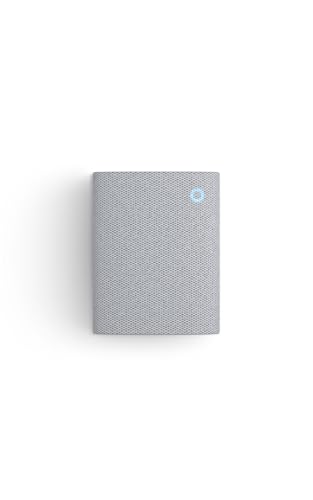
Best for local playback on your phone with no subscription required.
Going Deeper: Why Your Account, Not Your Camera, Is the Lock That Matters
Remote viewing works because the camera sends its stream through the maker’s cloud account, not straight to your phone. That design is convenient, but it makes the login the thing to protect. The FTC warns against keeping a camera’s default username and password or reusing an old password, because those can be easy for hackers to find online.
Two-factor authentication closes that gap by asking for a second proof. CISA, the US cybersecurity agency, groups the proofs into three types: something you know (a password or PIN), something you have (an authenticator app or a confirmation text), and something you are (a fingerprint or face scan). CISA says that even if an attacker gets one factor, like your password, they still can’t meet the second requirement. Users who turn it on are significantly less likely to be hacked. CISA also treats phishing-resistant methods, such as FIDO security keys, as the strongest option, while even a text-message code adds the second factor a password alone lacks.
Encryption protects the stream on its way to you. The FTC suggests looking for cameras that encrypt your account information, livestreams and archived video. It also says a camera’s web login page should show an address beginning with “https”, and should still show it after you sign in.
Your home network is the other half. The FTC recommends a strong router password, the router’s firewall switched on, and Wi-Fi encrypted with WPA3 or WPA2. It also suggests you consider putting cameras on a separate network from your computers and printers. None of these steps changes how the app looks day to day. They change who else can open it.
Next Steps
If your camera shows as offline more than occasionally rather than just failing to notify you, that is a different and more specific problem — go to why does my camera keep going offline. If you are setting up a brand-new camera and the WiFi pairing step itself is failing, how to connect a security camera to WiFi covers that specific step.
Sources & References
- How To Secure Your Home Security Cameras — Federal Trade Commission
- Setting up two-step verification for Ring — Ring
- Store encrypted security camera footage in iCloud with HomeKit Secure Video — Apple
- Learn about event and 24/7 video history — Google Nest Help
- More than a Password — Cybersecurity and Infrastructure Security Agency (CISA)