
Affiliate Disclosure: Some links on this page are affiliate links. As an Amazon Associate, we earn from qualifying purchases — at no extra cost to you. We do not buy, install, or physically handle the cameras we cover; our rankings come from aggregated owner reviews, ratings and expert consensus. Commissions never change our verdicts. We're reader-supported: commissions fund hosting, research and updates, so if a guide helped, buying through our links keeps it going. How we rank · full disclosure.
The direct answer: a Ring Chime is a plug-in indoor speaker that plays an alert when your Ring doorbell is pressed or your Ring device detects motion, and a Chime Pro does the same job while also extending the WiFi signal to your Ring devices. To set one up, plug it into an outlet, open the Ring app, choose Set Up a Device, follow the prompts to join it to your home WiFi, then choose which Ring devices should trigger it. Place a Chime Pro roughly halfway between your router and your farthest Ring device if you want the extender benefit. The whole job takes a few minutes and needs no tools.
A short note on sources: we do not buy or handle these devices. The steps and specifications below come from Ring’s own support articles and product pages, which we read for this guide, and the review sentiment comes from aggregated owner ratings. Where Ring does not publish a figure, such as an exact range in feet, we say so rather than guess.
In Plain English
A battery video doorbell does not ring inside your house on its own. It sends a notification to your phone, and a phone on silent, charging in another room or in your pocket means a missed visitor. A Ring Chime fixes that. You plug it into a wall outlet and it makes a sound inside the home whenever the doorbell is pressed or something moves.
There are three kinds. The plain Ring Chime is the simple speaker. The Chime Plus adds support for some Ring sensors. The Chime Pro is a chime plus a WiFi extender with a nightlight, which helps a doorbell or camera that struggles to hold a connection at the far end of the house.
Setup happens in the Ring app. You plug the chime in, the app finds it, you give it your WiFi password, and you pick which doorbells and cameras should ring it. If it stops working later, the cause is almost always the WiFi connection or a setting in the app, not a broken speaker.
Recommended Chime
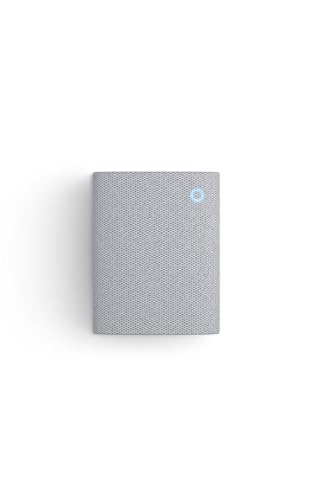
Best for Ring doorbell owners who miss alerts because a phone is on silent or out of earshot.
- Plug-in indoor chime for Ring alerts.
- WiFi and Bluetooth connectivity for setup.
- Adjustable volume and selectable tones.
Why buy it: The first-party chime for anyone running a Ring doorbell, and the most-reviewed chime on the site’s accessories page.
Blink and eufy owners have their own matched chimes, ranked on our best doorbell chimes page.
Which Ring Chime Do You Need?
Ring’s device compatibility list covers three models. The Chime (3rd Gen) and the Chime Pro are each listed as compatible with all existing Ring doorbells and security cameras. The Chime Plus is listed as compatible with those devices and with three Ring sensors: the Window and Door Sensor, the Outside Door Sensor and the Motion Detector (3rd Gen).
For most people the choice comes down to one question: is your WiFi signal strong at every Ring device? If it is, the standard Chime is enough. If a doorbell or camera drops offline, buffers or reports a weak signal, the Chime Pro solves two problems at once. Ring’s Chime Pro (2nd Gen) page lists dual-band WiFi on 2.4GHz and 5GHz with 802.11 a/b/g/n/ac support, a built-in nightlight, adjustable volume and both classic and seasonal tones. Ring’s Chime (3rd Gen) page describes single-band 2.4GHz WiFi with Bluetooth, which it says makes joining WiFi easier during setup.
Ring’s page also says you can use up to 10 chime devices on a single Ring account and choose which Ring devices trigger alerts. That is useful in a two-story house or one with a detached garage. The company notes that the chime is designed for indoor use.
Step-by-Step Setup
These steps follow Ring’s Chime, Chime Plus and Chime Pro setup guide. Screens change with app updates, so treat the app’s own prompts as the final word.
1. Get ready. Have your Ring account password and your home WiFi password to hand, and stand near where the chime will be plugged in. Make sure your phone is on the same WiFi network you want the chime to use.
2. Start in the app. Open the Ring app and tap Set Up a Device. Follow the prompts, and if scanning the QR code does not work, use manual setup. Allow Location Services when the app asks, then select or create your location and name the device.
3. Plug it in. Plug the chime into a wall outlet. If the light is not flashing, Ring says to hold the side button for five seconds to put it into setup mode.
4. Join WiFi. Ring says most chimes are set up by joining the Ring WiFi network the chime broadcasts, with the exception of the Chime (3rd Gen) and Chime Plus, which use Bluetooth. Then select your home network and enter its password, wait for the connection and finish the setup screens.
5. Choose which devices trigger it. After setup, open the chime in the app and select the doorbells and cameras that should ring it, and whether you want it to sound for motion as well as doorbell presses. Motion alerts can be frequent, so many owners choose doorbell presses only.
6. Test it. Press the doorbell and confirm the chime rings. Then adjust volume and tone in the chime’s audio settings.
Setting Up a Chime Pro as a WiFi Extender
The extender role is the reason to buy a Chime Pro, and placement decides whether it helps. Ring’s guide says to position the Chime Pro halfway between your WiFi router and the Ring device that is farthest away. Ring does not publish a fixed range figure in the pages we read, so do not assume a number of feet. Treat halfway as the starting point and adjust from there.
To make a Ring device use the Chime Pro network, Ring’s guide says that during setup you tap Connect, select the Ring device, then choose Switch to Chime Pro Network and Connect to Chime Pro. After the device is already installed you can do the same from Devices, then your device, Device Health, Change Network, Change WiFi Network and Connect to Chime Pro.
A practical habit is to set up the Chime Pro first, confirm it is online, and then move your doorbell or camera onto its network. Check the signal reading in the Ring app afterward. If the device is still weak, moving the Chime Pro a few feet closer to it, or to a different outlet, often makes a bigger difference than any setting. Our guide to why a Ring camera goes offline covers the wider set of causes.
If You Have a Wired Doorbell
A wired Ring doorbell can often ring the chime already in your house, and the Ring app handles this through In-home Chime Settings. Per Ring’s in-home chime troubleshooting article, you choose the chime type, either mechanical, digital or none, then save and wait a few minutes before testing. Battery doorbells can use automatic chime detection to identify the chime for you.
Ring also notes that a few models do not support in-home chimes, naming the Video Doorbell Wired and the Wired Doorbell 4K Pro without PoE, and points those owners to a Ring Chime or the Chime Kit Mini. If your existing chime is silent, Ring says to check that the chime type matches your hardware, that the setting to ring the in-home chime is switched on and that the Ring device is online.
Fixing a Silent or Dropped Chime
When a chime stops working, work through the causes in order of likelihood. Owner reports in reviews point overwhelmingly to WiFi and pairing rather than hardware failure.
Check the app settings first. Confirm the chime is set to sound for the alert type you expect, the volume is up and the tone is selected. Confirm the Ring device it is paired with shows as online. A doorbell that is offline cannot trigger anything.
Check WiFi. Ring’s offline troubleshooting guidance lists moving the device closer to the router or adding a Chime Pro extender, switching to a 2.4GHz network if you were on 5GHz, and restarting your router and modem. The standard Chime is 2.4GHz only, so a router that has merged its bands or a phone on 5GHz during setup can cause trouble.
Power cycle it. Unplug the chime for a minute and plug it into a different outlet. Some outlets are switched from a wall switch, which is a common cause of a chime that appears to die every night.
Reconnect or reset. In the app, open the device and use Device Health to reconnect it to WiFi. If that fails, a factory reset via the button on the chime, followed by setting it up again, is the last resort. The hold time differs by model, so use the reset steps in Ring’s support article for your model rather than a generic number.
If you are still deciding whether the Ring ecosystem is worth it for you, see is Ring worth it, and for the cameras and doorbells a chime pairs with, best Ring cameras. The rest of the practical installation material is indexed at installation guides.
Going Deeper: Why Chime Problems Are Usually WiFi Problems
A Ring chime is a small WiFi client. It does not talk to your doorbell directly. When someone presses the button, the doorbell sends a message over the internet to Ring’s servers, and Ring’s servers tell the chime to play a sound. That means three separate connections must all be working at that moment: the doorbell to your router, your router to the internet, and the chime to your router. If any of the three is slow, dropped or on the wrong band, the chime is late or silent, and the phone notification may still arrive because phones are on a different connection.
That explains most of the puzzling reports. A chime that works at night and fails in the afternoon may share an outlet with a lamp on a timer. A chime that rings for the doorbell but not for motion has motion alerts disabled for it in the app. A chime that worked for weeks and then stopped often lost its connection after a router restart or a change to the WiFi name or password, and needs reconnecting through Device Health.
The band question matters more than most owners expect. Ring lists the Chime (3rd Gen) on single-band 2.4GHz and the Chime Pro (2nd Gen) on dual-band, and many home routers present a single network name that combines the two bands. During setup, a phone connected on the 5GHz band while the chime can only see 2.4GHz can make a setup fail without a clear reason. If setup stalls, temporarily putting your phone on the 2.4GHz network, or separating the bands in your router settings, is a common fix.
Placement of a Chime Pro follows the same logic. An extender is only useful where it can itself receive a good signal from the router, which is why Ring’s guidance is halfway between the router and the farthest device rather than right next to the doorbell. Put it too close to the router and it adds nothing. Put it too close to the far device and it has a poor signal to relay. Halfway is a compromise you can adjust after checking the signal reading in the app.
Finally, remember what a chime cannot do. It will not add recording, it does not make an offline doorbell work, and it will not fix a doorbell whose own WiFi is unreliable unless you connect the doorbell to a Chime Pro network. If your real problem is a doorbell that keeps dropping offline, treat the chime as a symptom and start with the network at the doorbell itself.