
Affiliate Disclosure
Some links on this page are affiliate links. As an Amazon Associate, we earn from qualifying purchases — at no extra cost to you. We do not buy, install, or physically handle the cameras we cover; our rankings come from aggregated owner reviews, ratings and expert consensus. Commissions never change our verdicts. How we rank · full disclosure.
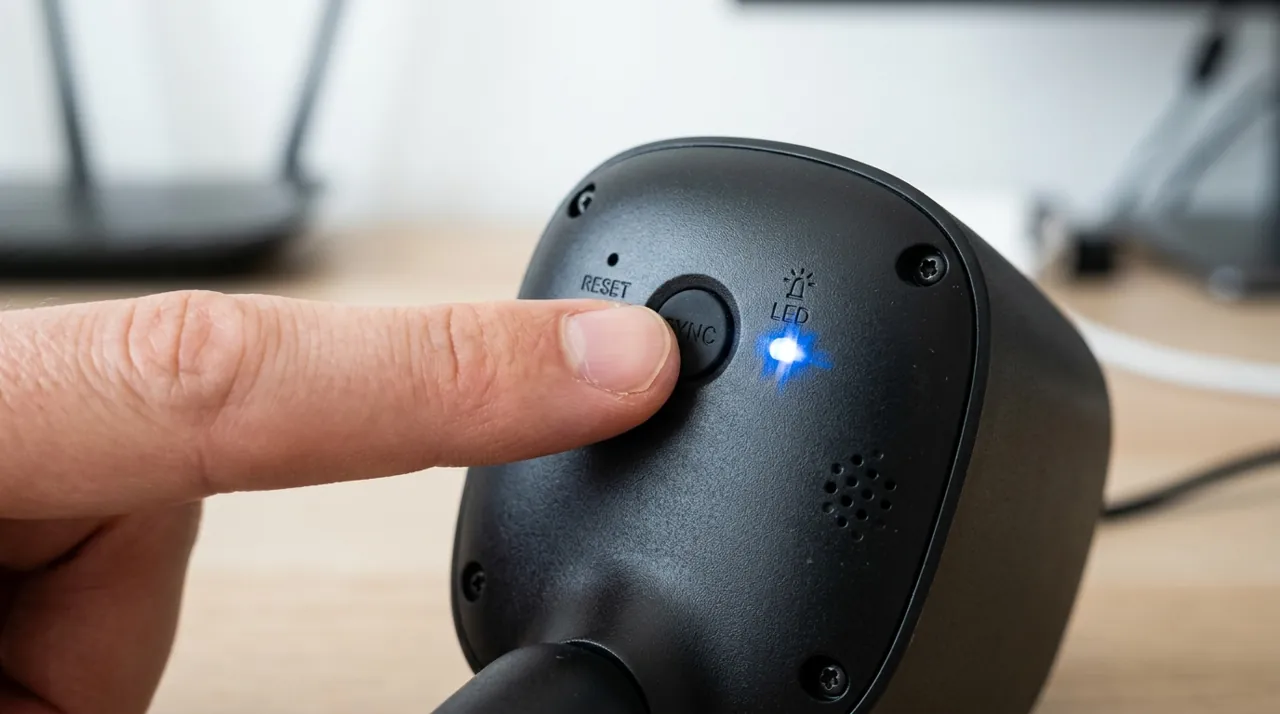
Short answer: nearly every security camera has a small physical reset button, usually recessed and requiring a paperclip or similar tool to press, that when held for a specific duration — commonly ten to thirty seconds depending on the model — wipes all custom settings and returns the camera to its out-of-box factory state. This erases WiFi credentials, account linkage, custom detection zones and any other configuration, requiring the full setup process to be redone from scratch afterward, which is exactly why a factory reset should be treated as a real troubleshooting step rather than a casual first move.
Recommended Cameras With Straightforward Reset Processes
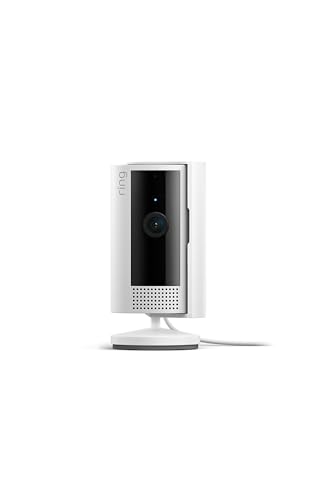
Best for a well-documented, straightforward physical reset button.

Best for a simple reset process with an active owner community for troubleshooting help.

Best for a PoE camera with its own factory-reset procedure worth checking first.
How Do I Reset a Security Camera to Factory Settings? The General Process
Locate the reset button, typically a small recessed pinhole on the camera's body or base, and check the manual or the manufacturer's support page for the exact hold duration, since this genuinely varies by model and pressing for too short or too long a time can either fail to trigger the reset or, in rare cases, put the camera into an unexpected state. Most cameras signal a successful reset with a light pattern change or an audible tone, confirming the process completed before you move on to re-adding it in the app.
After a successful reset, the camera behaves exactly as it did fresh out of the box — no WiFi network memorized, no account linked, default detection and notification settings restored. Setting it up again from this point follows the same process as an initial installation, which is worth planning for since it takes real time to reconfigure detection zones and other custom settings that a reset erases.
When a Factory Reset Is Actually the Right Move
A factory reset is genuinely useful for persistent connectivity problems that simpler troubleshooting has not resolved, for transferring a camera to a new owner or a new household WiFi network entirely, or for a camera behaving erratically in ways that suggest corrupted settings rather than a hardware fault. It is generally the wrong first step for a camera with a single, specific problem — a missed detection, a slow live view — where the underlying cause is more often addressed through a settings adjustment or a firmware update than a full wipe.
What to Check and Save Before Resetting
Note down any custom settings worth preserving — specific activity zones, sensitivity levels, notification preferences — since recreating them from memory after a reset is far easier than guessing at what worked well before. If footage is stored locally on a microSD card, check whether the specific camera's reset process erases the card's contents or leaves them intact, since this varies by model and matters if any of that footage is worth keeping. Removing the camera from its associated account before resetting, where the app supports it, generally produces a cleaner re-setup than resetting a camera still actively linked.
See why is my camera lagging for a related but distinct performance-troubleshooting issue, and how do I know if my camera is hacked for the scenario where a reset is specifically part of a security recovery process.